Joist QuickBooks Integration: What Syncs and What Doesn't
By the Partner team · November 16, 2026
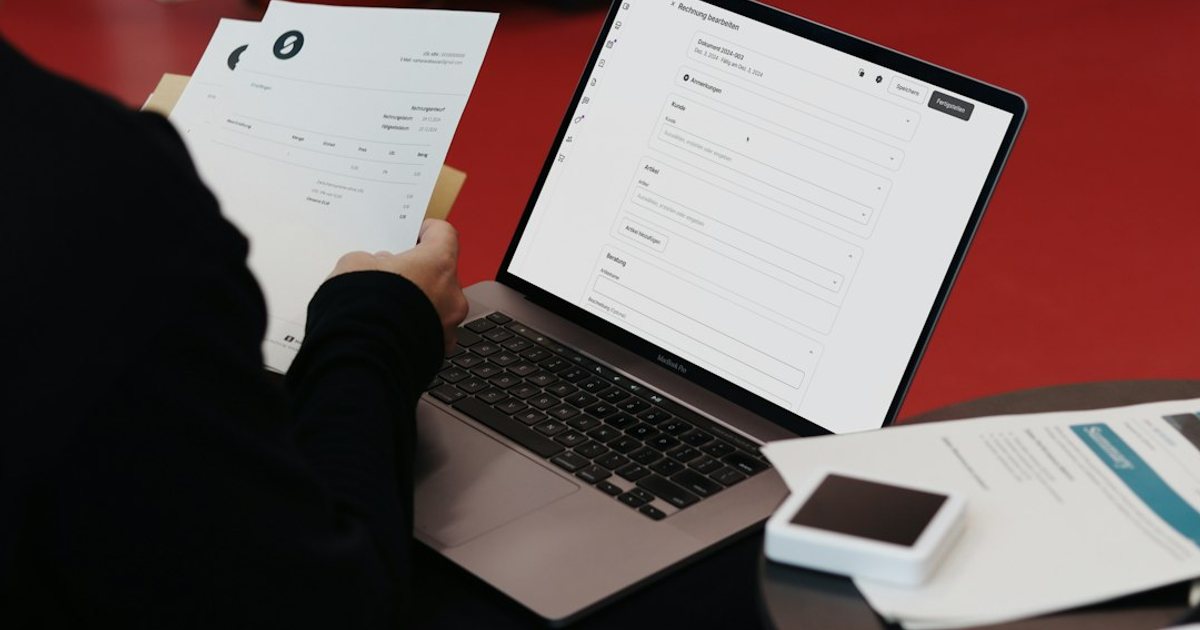
Yes, Joist works with QuickBooks, with limits. The Joist QuickBooks integration is called QuickBooks Sync. It sends estimates and invoices one way from Joist to QuickBooks Online, usually overnight, on the Pro plan and above. Payments don't sync. QuickBooks Desktop isn't supported. Nothing you change in QuickBooks comes back into Joist. Below you'll find what moves, what you still have to enter by hand, and how to tell whether the sync covers enough of your paperwork.
Does Joist integrate with QuickBooks?
It does. Joist's own Joist vs QuickBooks guide says QuickBooks Sync connects Joist to QuickBooks Online. It also says Joist isn't accounting software and can't replace QuickBooks. Joist writes your estimates and invoices, and QuickBooks keeps the books.
Before you count on the sync, check these points:
- QuickBooks Online only. Joist's QuickBooks Sync page says the integration works with QuickBooks Online. A Workyard review of Joist confirms Desktop isn't supported.
- The Self-Employed version doesn't work. Joist's help article What is QuickBooks Sync? notes that QuickBooks Online Self-Employed doesn't support syncing.
- You need a paid Pro plan or higher. The sync comes with Joist Pro and Elite. Joist's Joist vs Invoice2go comparison lists Basics at $10 a month, Pro at $17 and Elite at $32. Basics doesn't include QuickBooks sync.
How the Joist QuickBooks integration works
Joist's help article How does automatic QuickBooks syncing work? lays out the steps.
When documents sync
- With automatic sync turned on, Joist syncs to QuickBooks every night at 4 a.m. Eastern.
- An estimate or invoice joins the queue once it shows the blue "ISSUED" label. Joist adds that label when you email the document.
- Printing a document doesn't mark it as issued. If you print and hand an invoice to a homeowner, it won't sync on its own. Joist suggests emailing the document to yourself or using manual sync.
- Manual sync lets you push documents when you choose, so you don't have to wait for the nightly run.
What gets created in QuickBooks
- Each synced document becomes a new document in QuickBooks.
- Joist looks for a matching client, item and tax in QuickBooks. If it can't find one, it creates a new one.
- Data moves in one direction only, from Joist to QuickBooks.
That second point matters more than it looks. If a client is "Smith, John" in QuickBooks and "John Smith" in Joist, the sync may create a second customer record. The same goes for items and tax rates. Before you turn on automatic sync, make client names, item names and tax rates match in both apps.
What the Joist QuickBooks sync leaves for you to do
The sync saves retyping estimates and invoices. The rest of your paperwork stays manual. Plan for these gaps:
- Payments. Joist's help center says payment information doesn't sync. You record payments in QuickBooks yourself after the invoice arrives. If you skip that step, QuickBooks will show paid invoices as still open.
- Edits made in QuickBooks. If your bookkeeper fixes an invoice in QuickBooks, Joist won't see the change. Your two systems drift apart unless one person owns the corrections.
- Crew hours and payroll. Joist sends documents, not time. The Workyard review points out that getting hours into QuickBooks takes a separate time-tracking tool.
- Job profitability. On its sync page, Joist says syncing invoices keeps your income records current. Income is only half of job cost. Labor and materials have to reach the same job before you can see whether it made money.
- Timing. With a nightly sync, QuickBooks runs up to a day behind Joist. That's fine for month-end. It's less useful when you're checking who owes you on a Thursday afternoon.
Setting it up without making a mess in QuickBooks
Joist's guide covers the basic connection: have a QuickBooks Online account and a Joist plan that includes the sync, then open QuickBooks Sync in the Joist app. These steps help avoid cleanup later:
- Clean up QuickBooks first. Merge duplicate customers and items before connecting, so Joist matches to records that already exist.
- Use the same names in both apps. Spell clients, items and tax rates the same way in Joist and QuickBooks.
- Test with one document. Joist suggests creating an estimate or invoice during the free trial and checking that it shows up in QuickBooks. Look at the customer, line items and tax before you sync anything else.
- Decide who records payments. Payments don't sync, so make one person responsible for marking invoices paid in QuickBooks.
- Email, don't just print. Only issued documents queue automatically. Send invoices by email or run a manual sync for printed ones.
- Choose one place to make edits. Make changes in Joist and let them flow to QuickBooks. Edits made in QuickBooks don't flow back.
When Joist plus QuickBooks is enough, and when it isn't
Joist's guide says that if your jobs are simple and you're fine writing estimates in QuickBooks, you may not need Joist at all. The Workyard review suggests that for a solo contractor who mostly quotes and invoices, Pro at $17 a month may be all the software required.
The pairing usually works when:
- You work alone or with one or two helpers, and you write all the estimates and invoices yourself.
- You already use QuickBooks Online and have a bookkeeper who can record payments.
- You don't need per-job labor costs or GPS-verified hours.
It starts to fall short when:
- You have a crew on the clock. Their hours still have to reach payroll and each job by some other route.
- You want to know whether a job made money before it closes, not after your accountant reconciles the books.
- Recording payments by hand means invoices sit unpaid in QuickBooks and nobody follows up.
- You use QuickBooks Desktop, which the sync doesn't support.
If any of these sound familiar, the real problem is that your hours, costs and payments live in separate places. A better invoice sync won't fix that.
Closing the gaps the sync leaves
Each gap has its own fix. Keeping one system in charge of each piece of data helps whichever tools you use.
Hours and labor cost
Have the crew clock in to a specific job so labor lands on that job, not in a weekly total. A GPS time clock that puts every hour on the right job does this from the phone. You get job-level hours you can send to payroll without retyping timesheets.
Job profitability while the job is running
Compare what you've invoiced against labor and materials as the work goes. If you want to see whether a job is slipping while there's still time to fix it, see how job costing tracks that in Partner.
Unpaid invoices
Payments don't sync, so open balances are where Joist and QuickBooks drift apart most. Export your invoices and run the free "who owes you" check to see which balances are actually outstanding and how old they are.
The short answer
The Joist QuickBooks integration handles one job well: it copies issued estimates and invoices into QuickBooks Online every night, so you don't type them twice. It doesn't move payments, sync back from QuickBooks, work with Desktop or Self-Employed, or carry crew hours and job costs. If you mostly quote and invoice on your own, that may be enough. If you run a crew and want estimates, time, payroll and invoices in one place, you can try Partner free at yourpartner.app and compare it with your current setup.
Drafted with AI and published by the Partner team.
Keep reading
- QuickBooks Online Construction Integration That WorksJuly 22, 2026
- QuickBooks Versus Contractor Software for ContractorsSeptember 9, 2026
- Certified Payroll Software for Small Contractors: What It Must DoNovember 27, 2026